Chat without a separate extension
Supported messengers open directly from Opera’s sidebar. Sign in to the service you already use and access your existing contacts and conversations from the browser.
 Opera
Download now
Opera
Download now
Open WhatsApp, Telegram, Discord, Slack and other supported services from Opera’s sidebar while you browse. Messengers are integrated into the browser, so you can chat, share media and keep conversations beside the webpage without installing a separate sidebar extension.
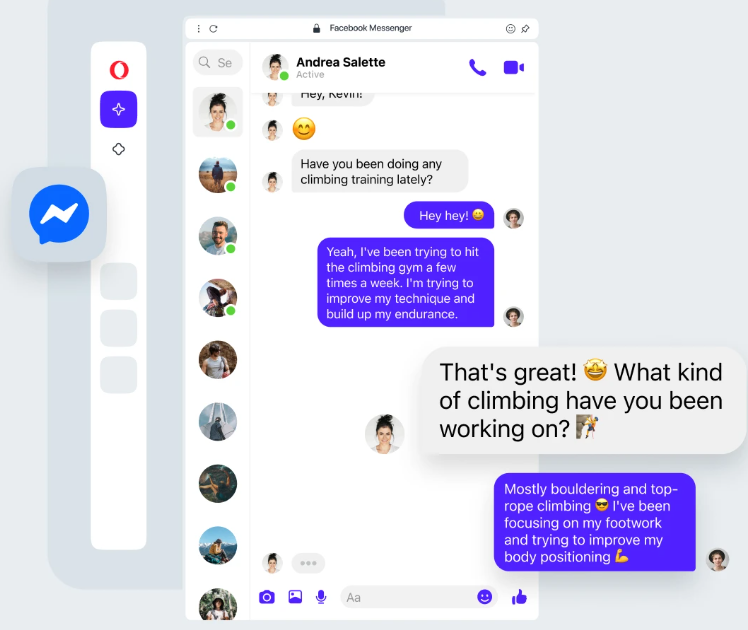
Opera keeps supported messaging services in a browser panel that can be opened from the sidebar, pinned beside the page, muted when needed and configured from Sidebar setup.
Supported messengers open directly from Opera’s sidebar. Sign in to the service you already use and access your existing contacts and conversations from the browser.
Pin a supported messenger panel beside the current webpage when you want the conversation to remain visible, then unpin it when you need the full browsing area again.
Opera can show messenger notification badges in the sidebar. Notification badges can be enabled or disabled, and supported messengers can be muted or logged out.
Use the three-dot Sidebar setup control or Settings > Sidebar > Manage sidebar to add or remove messengers and manage the services shown in the sidebar.
Opera’s sidebar separates messengers from social media and other browser services. The exact services shown in Sidebar setup can vary by Opera version and availability.
Open WhatsApp from the sidebar, pair it with your phone using the QR code, then access chats, media and notifications while browsing.
Keep Telegram conversations and channels available from the sidebar without turning each chat into a separate browser tab.
Access Discord communities and conversations from Opera’s sidebar while keeping the webpage you are using open beside them.
Use Slack from the sidebar for work conversations and team communication without installing an additional browser extension.
Opera also provides integrated access to Facebook Messenger on desktop, including Messenger web features such as supported calls and chats.
These are presented as social media services in Opera’s sidebar rather than the same messenger category as WhatsApp or Telegram.
Enable only the services you use, sign in with the relevant service account and control how messenger panels and notifications behave while you browse.
Click the three-dot icon at the bottom of the sidebar and use Sidebar setup, or open Settings > Sidebar > Manage sidebar, then select the messengers you want available.
Open WhatsApp from the sidebar, then scan the displayed QR code with WhatsApp on your phone or tablet to connect your existing account.
Pin a supported conversation when you want it beside the webpage. Use messenger controls to mute or log out, and manage notification badges from Sidebar settings.
Opera’s current Sidebar setup lists WhatsApp, Telegram, VK, Slack and Discord under Messengers. Opera also provides integrated Facebook Messenger access, while Instagram, X and Bluesky are listed separately as Social Media services. Availability can change by version or region.
No. Supported messengers are integrated into Opera’s sidebar, so you do not need a separate browser extension for the sidebar integration. You still sign in with the account required by each messaging service.
Yes. Supported messenger panels can be pinned so the conversation stays visible beside the current webpage. Unpin the panel when you want to return the full width to browsing.
Open Settings > Sidebar > Manage sidebar and use the notification badge control for messengers. You can also mute an individual messenger when you do not want its notifications.
Click the three-dot icon at the bottom of Opera’s sidebar to open Sidebar setup, then enable the services you want. The same options are available under Settings > Sidebar > Manage sidebar.
No. ChatGPT and Gemini are listed as AI Services in Opera’s sidebar, not as messengers. Instagram, X and Bluesky are listed as Social Media, while WhatsApp, Telegram, Slack and Discord belong to the messenger category.
SIDEBAR MESSAGING
Download Opera, choose your messengers in Sidebar setup, and pin a chat beside the page whenever you want to browse and communicate at the same time.
